
Upsell Messages
Upsell messages — the Spend-more nudge — are the dynamic prompts that tell shoppers how close they are to unlocking a better deal. They update in real time as the cart changes, and the storefront renders them on three independent surfaces: the mini-cart, the cart page, and the checkout.
Why upsell messages matter
Section titled “Why upsell messages matter”This is one of Dino's strongest differentiators. Most discount plugins apply discounts silently — the customer either stumbles into the deal or misses it. The spend-more nudge actively guides shoppers toward the deal:
- Lifts average order value — shoppers add items to clear the next tier
- Reduces cart abandonment — "you're $8 from free shipping" beats "checkout" in the conversion path
- Creates urgency without aggression — the message disappears the moment the threshold is met, so it never nags
Where to edit upsell text
Section titled “Where to edit upsell text”Scroll to the Messaging section at the bottom of the rule editor (after Rewards). The Spend-more nudge sub-block sits below Cart label. The block renders three rows — one per surface (mini-cart, cart, checkout) — and each row has both a message input and a position dropdown.
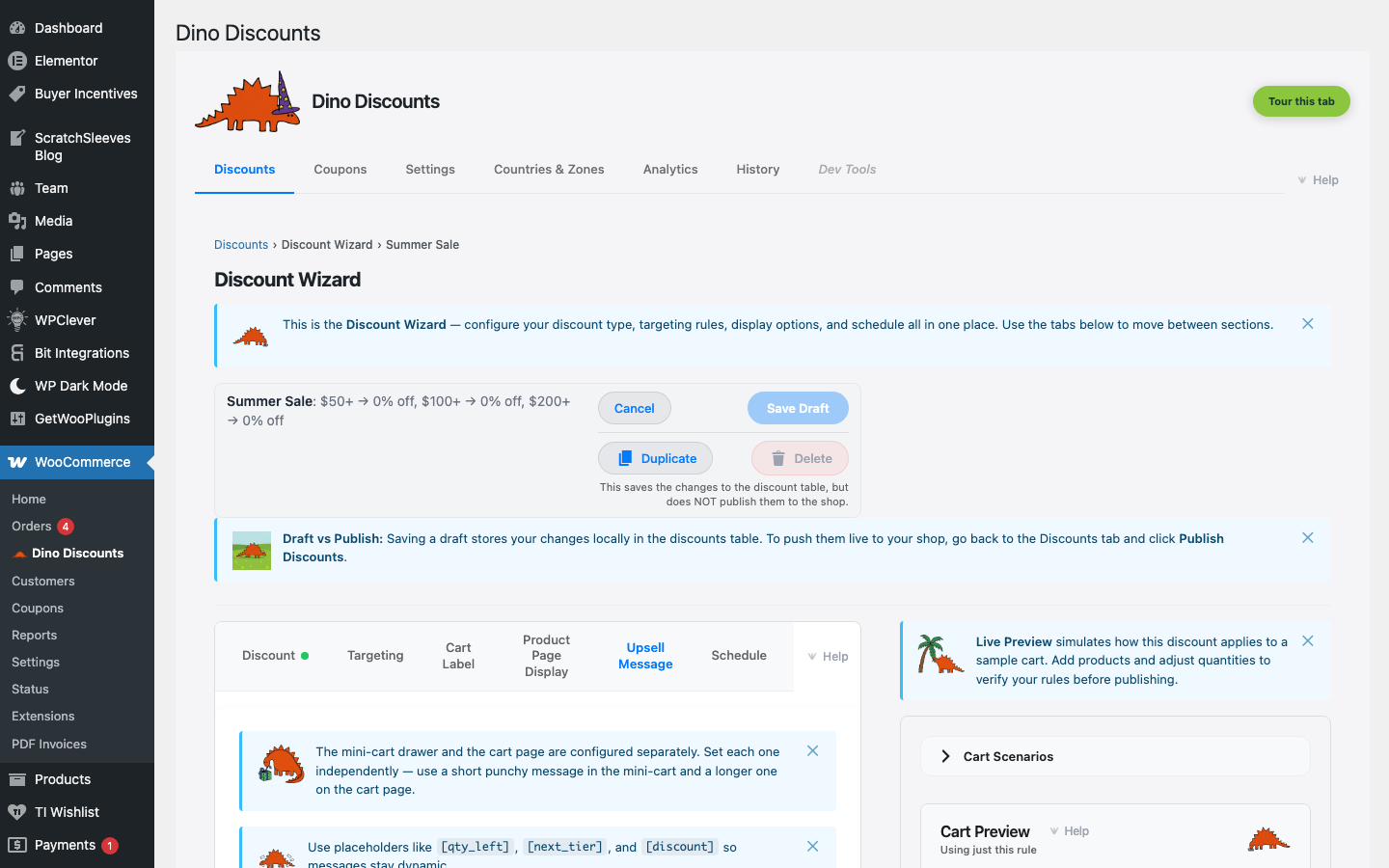
If the rule doesn't have a tiered reward — for example, a flat % Off Order with no threshold — the block renders a locked-state heading: "Choose a tiered reward to enable the Spend-more nudge." The block is still visible (so you discover that nudges exist) but the inputs collapse until the rule shape unlocks them. This is the locked-state pattern the Messaging section uses everywhere — gating fields stay in view, with a one-line explanation of what to change.
Token chips
Section titled “Token chips”Above the message inputs is a row of click-to-insert token chips. Click any token to drop it into the currently focused input; the storefront swaps each token for the live value at render time.
| Token | Meaning | Example output |
|-------|---------|----------------|
| [amount_left] | Remaining spend to reach the next tier | Spend [amount_left] more → "Spend $15 more" |
| [qty_left] | Remaining items to reach the next tier | Add [qty_left] more → "Add 2 more" |
| [next_tier] | Description of the tier that unlocks next | unlock [next_tier] → "unlock 15% off" |
| [discount_value] | Bare numeric value of the reward — no % or currency unit, so you add your own | for [discount_value]% off → "for 10% off" |
| [discount] | Same bare number as [discount_value] (terse synonym) | for [discount]% off → "for 10% off" |
| [discount_label] | Complete formatted reward label | for [discount_label] → "for 10% off" |
Tokens that don't apply to the rule's tier kind render in a locked / greyed-out chip state. For example, [qty_left] is unavailable when the rule uses spend tiers — the inline warning "[qty_left] won't resolve — your rule uses spend tiers" surfaces if you type it manually. Use [amount_left] for spend tiers and [qty_left] for quantity tiers.
Per-surface message and position
Section titled “Per-surface message and position”Each surface has independent message and position controls:
Mini-cart
Section titled “Mini-cart”Short copy — space is tight (Storefront's mini-cart is typically 320–360px wide). Default message: "Spend [amount_left] more for [discount_label]".
| Position | Where it renders | |----------|------------------| | Hidden | Don't show on this surface | | Top (above items) | Above the line items list | | Above buttons | Above the Checkout / View cart buttons | | Below cart items | Below the line items list |
Cart page
Section titled “Cart page”Full-length copy — the cart page has room. Default message: "You're [amount_left] away from [discount_label]. Add a few more items to your cart.".
| Position | Where it renders | |----------|------------------| | Hidden | Don't show on this surface | | Top (above cart table) | Above the cart table | | Above 'Proceed to checkout' | Above the checkout CTA | | Below cart totals | Below the totals block |
Checkout
Section titled “Checkout”Falls back to the default cart-page copy (DEFAULT_CART_MESSAGE) when its own message is blank — leave it empty if you want the standard nudge, or override per-surface. Default position: Above order summary.
| Position | Where it renders | |----------|------------------| | Hidden | Don't show on this surface | | Top (above billing details) | Top of the checkout page | | Above order summary | Above the right-rail summary | | Above payment methods | Between order summary and payment | | Below order review | End of the page |
What the storefront filter does
Section titled “What the storefront filter does”The nudge respects each shopper's checkout currency — [amount_left] is formatted with the cart's currency symbol, not the merchant's base currency. In a multi-currency store, this means a single nudge ("Spend [amount_left] more") renders as "Spend €15 more" or "Spend $18 more" depending on the shopper's region, with no separate rule per currency. See Multi-currency for the per-currency pricing model.
Where they fire
Section titled “Where they fire”The Spend-more nudge only fires on rules with thresholds — tiered (Spend & Save), volume (bulk pricing), buy-X-get-Y, and bundle (mix-and-match). Rules without a threshold (a flat % Off Order with no minimum spend) have nothing to nudge toward, so the block stays locked.
You can also leave the nudge blank on a threshold rule — the storefront defaults (DEFAULT_MINI_MESSAGE and DEFAULT_CART_MESSAGE) match the merchant-friendly copy the input shows as a placeholder. The placeholder is the exact text the storefront renders when the input is blank.
Programmatic editing
Section titled “Programmatic editing”Every nudge field is also writable via the REST API for bulk imports — nudge_message_mini, nudge_message_cart, nudge_message_checkout, nudge_position_mini, nudge_position_cart, nudge_position_checkout. See the REST API reference.
- Lead with the action ("Spend $X more"), not the reward. Shoppers respond to the gap, not the prize.
- Keep mini-cart copy under 8 words — anything longer wraps awkwardly on mobile.
- Use the Plain English summary in the editor as a sanity check before publishing. If the summary reads "Spend $50 → free shipping," the nudge should read "Spend [amount_left] more for free shipping."
- Test in Cart Preview — fill a cart $5 under the threshold and confirm the nudge text appears as expected.
What's next
Section titled “What's next”- Cart Labels — the cart-line label editor lives in the same Messaging section
- Product Page Pricing — the product-page block lives in the same Messaging section
- Testing with Cart Preview — verify the nudge fires at the right threshold before publishing