
Quick Start: Your First Discount in 3 Steps
Once the plugin is installed, a first automatic discount takes three steps. The walkthrough below builds a two-tier Spend & Save discount: spend £50 to get 10% off, or £100 to get 15% off. It applies on its own at checkout, with no coupon code.
-
1Pick a recipe
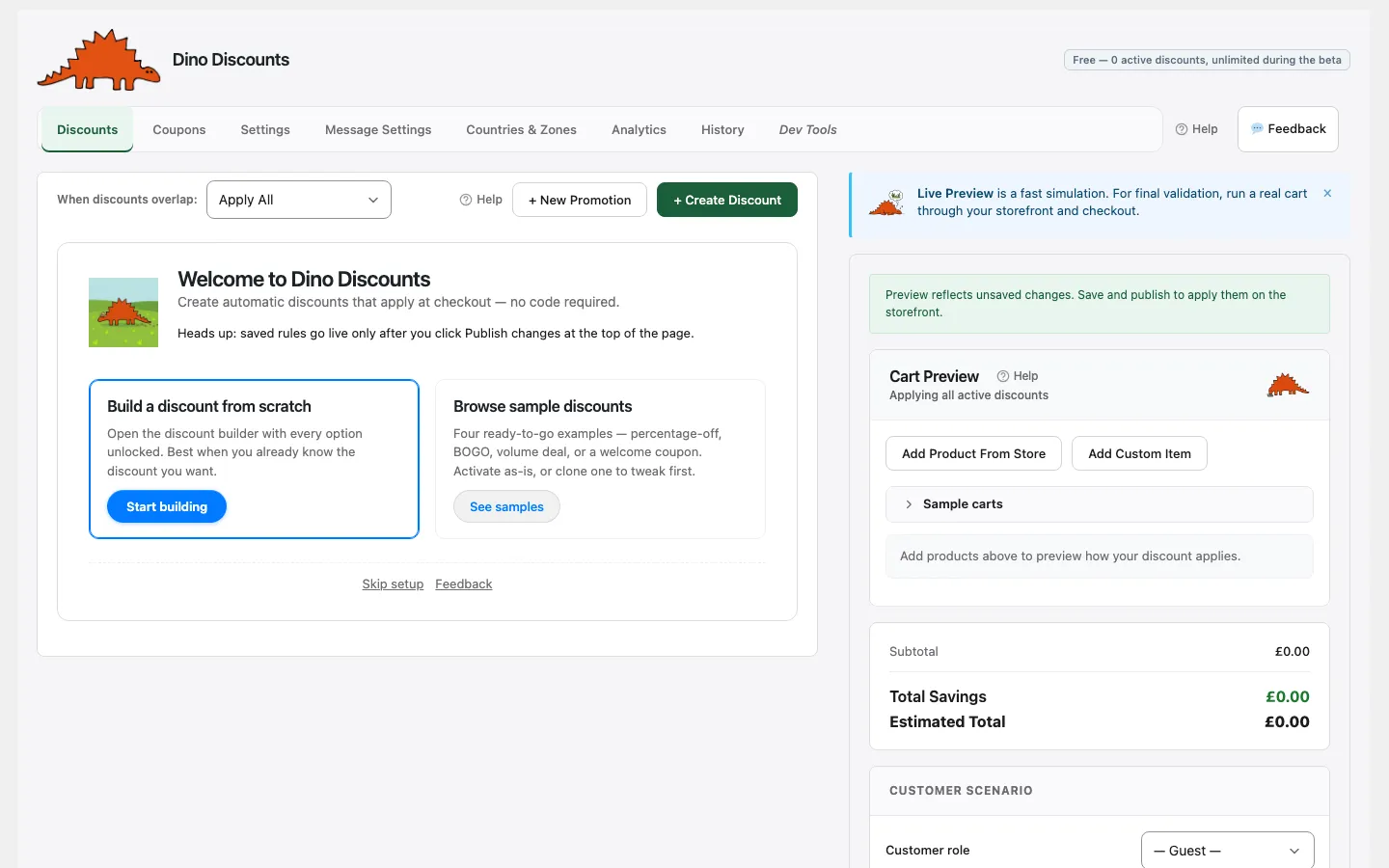
- Go to WooCommerce → Dino Discounts and click + Create Discount.
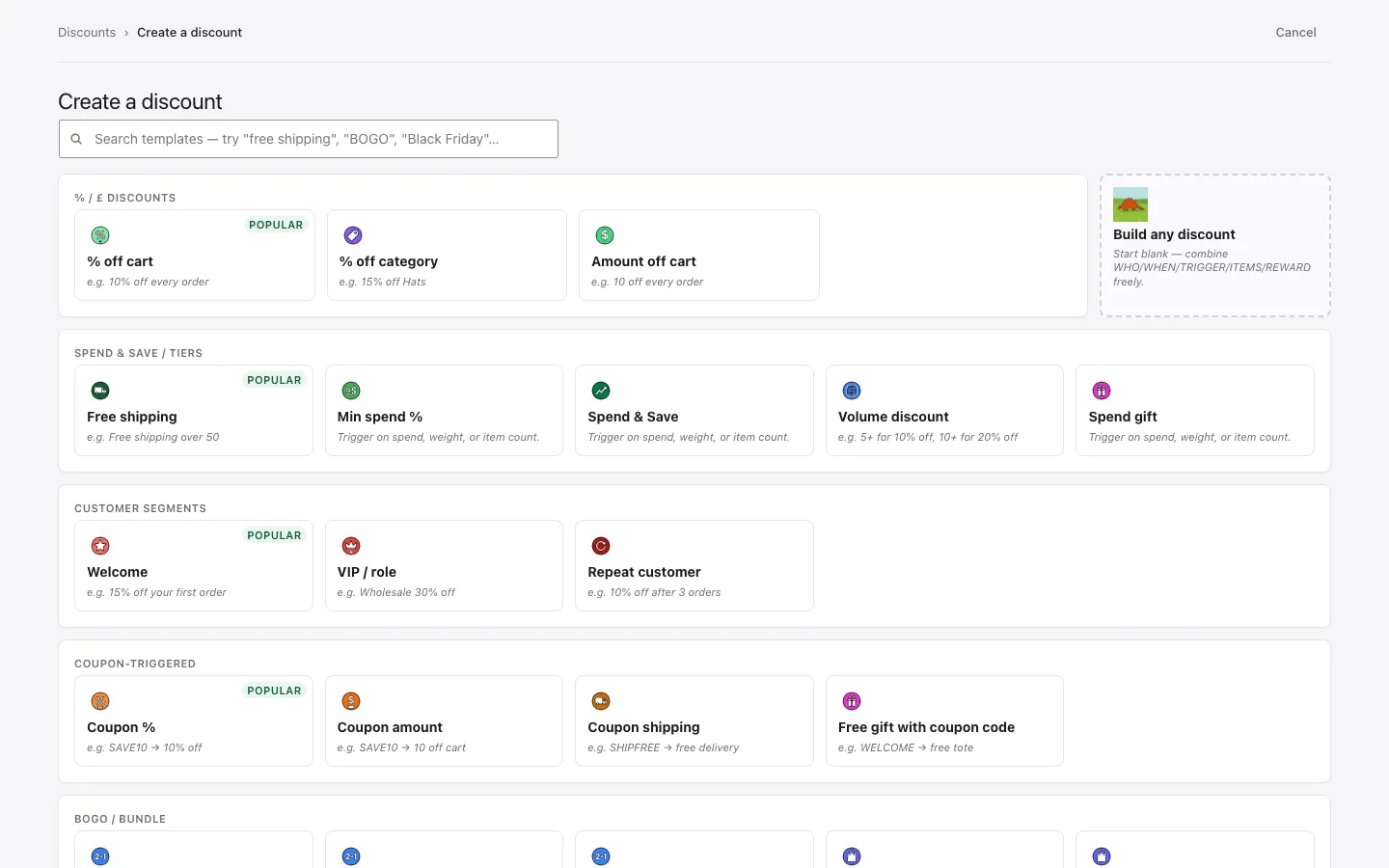
- The recipe gallery opens. Under Spend & save / tiers, pick Spend & Save.
- Go to WooCommerce → Dino Discounts and click + Create Discount.
-
2Set the tiers and preview
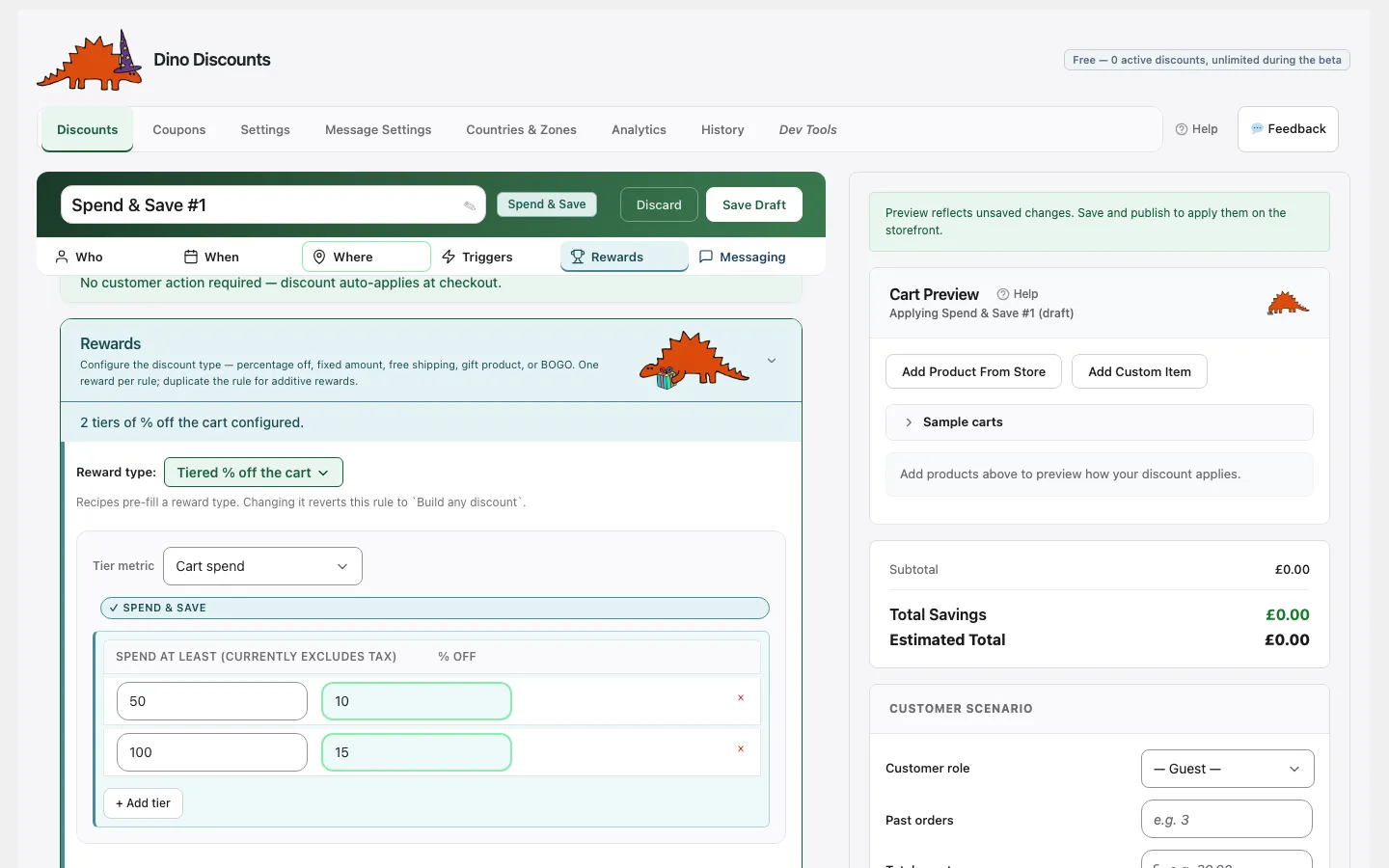
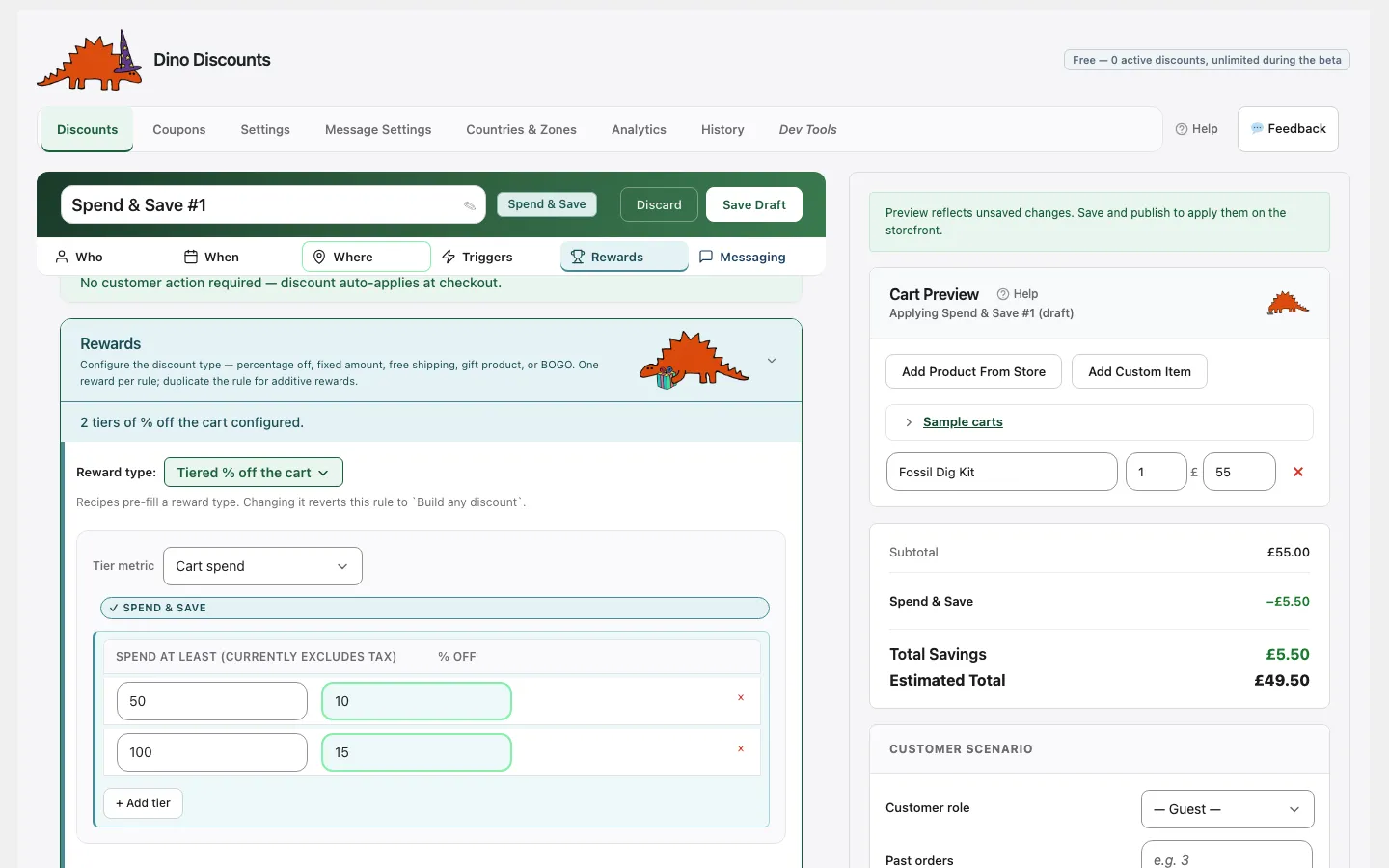
- In Rewards the reward type is already Tiered % off the cart. Set the tiers: spend at least 50 for 10% off, and 100 for 15% off.
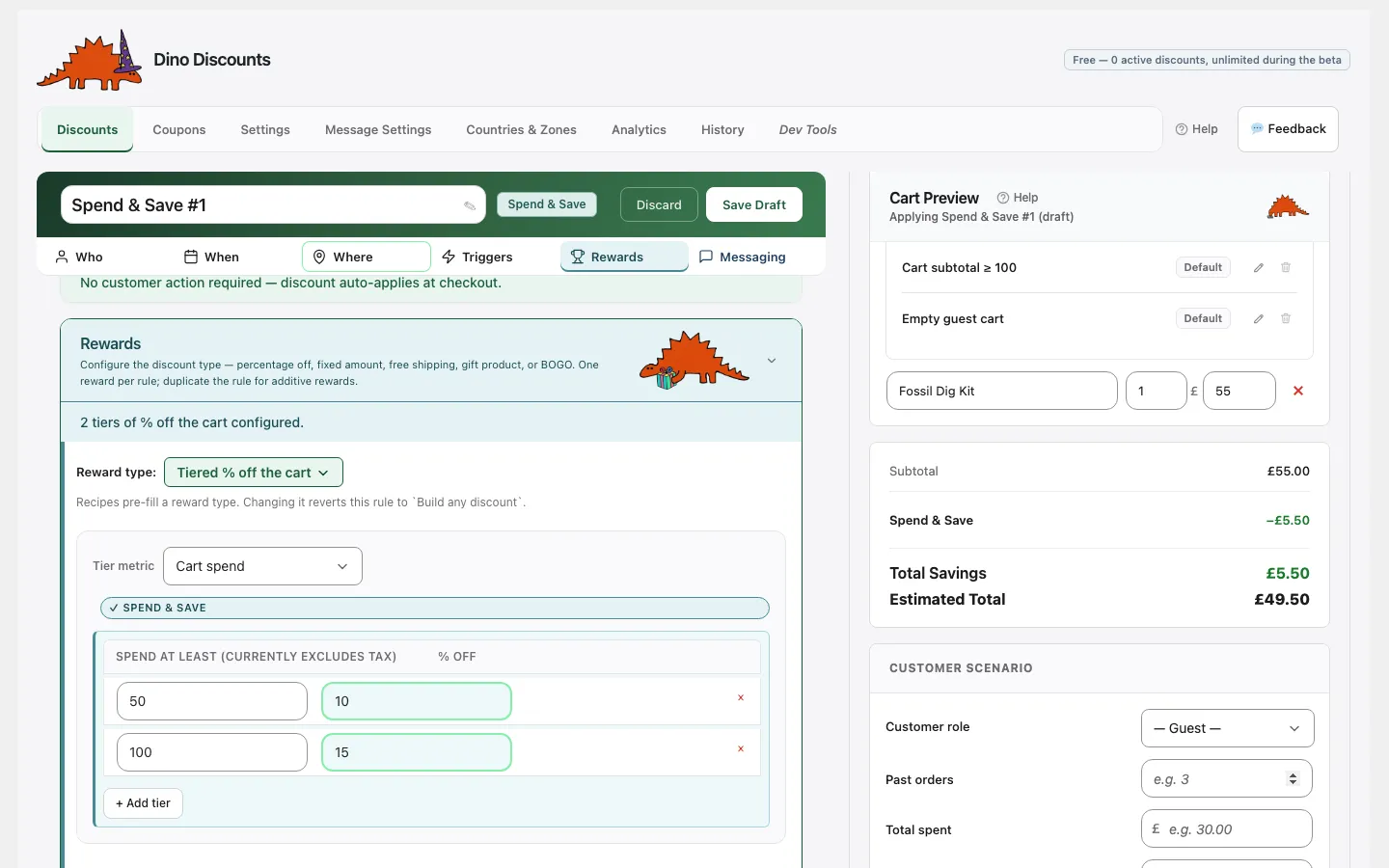
- Open Sample carts in the Cart Preview and load a cart. A £55 cart shows the Spend & Save line at −£5.50, worked out by the real discount engine.
- In Rewards the reward type is already Tiered % off the cart. Set the tiers: spend at least 50 for 10% off, and 100 for 15% off.
-
3Save and publish
- Click Save Draft. A draft never changes your live store.
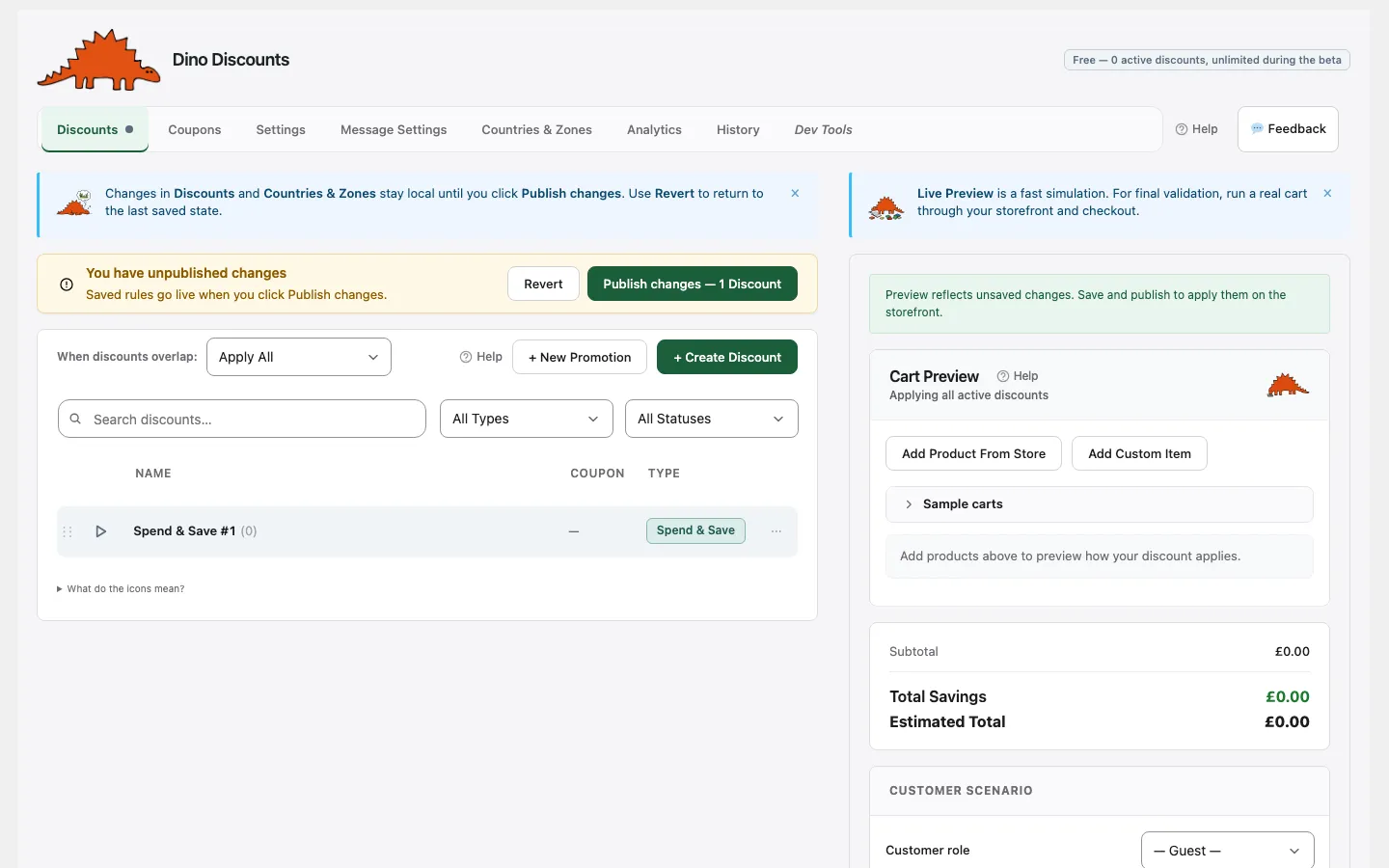
- Back on the Discounts tab, the You have unpublished changes banner appears. Click Publish changes.
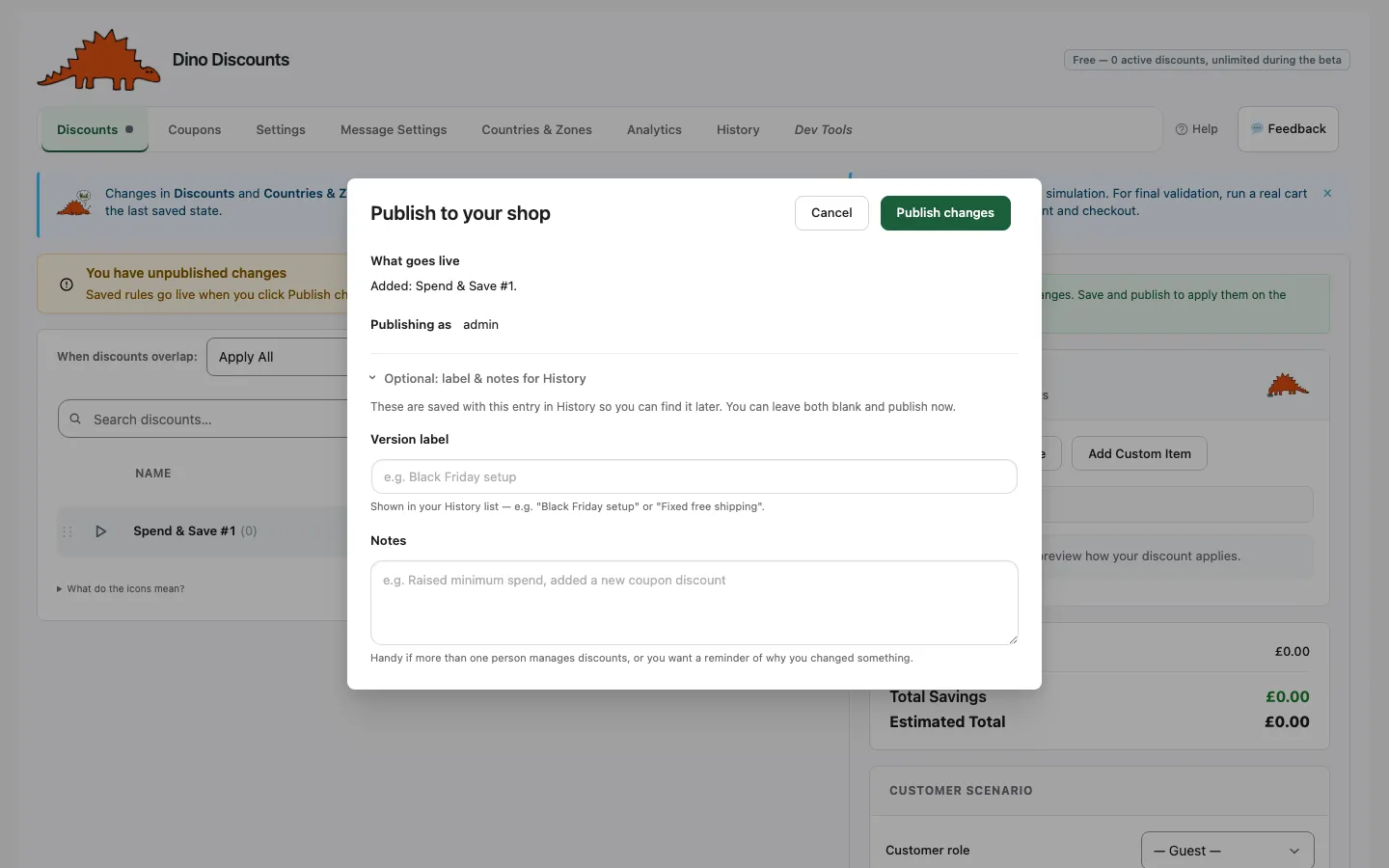
- The Publish to your shop window lists What goes live. Click Publish changes to confirm.
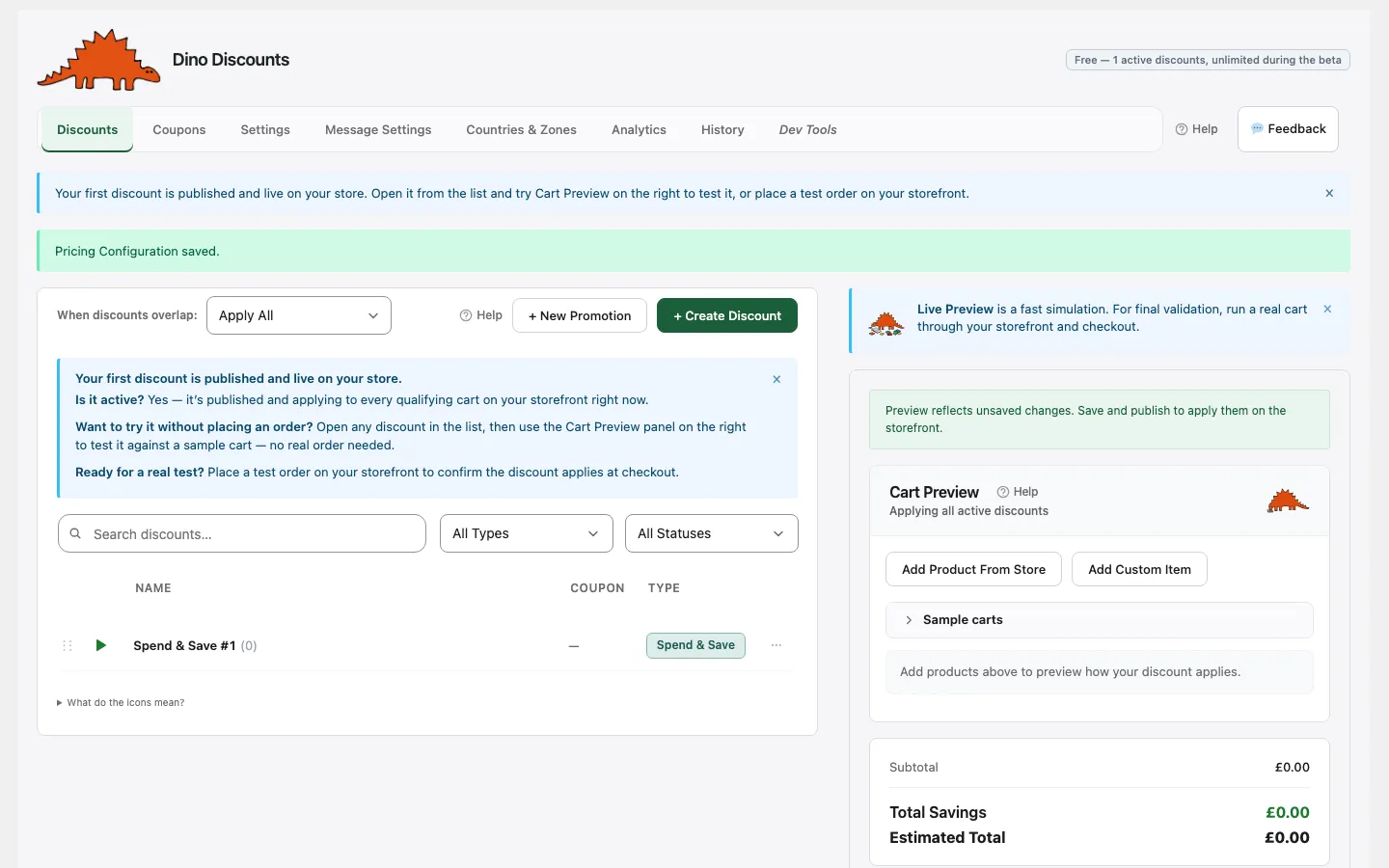
- The discount is live. Carts from £50 get 10% off, and 15% off from £100, with no coupon code.
- Click Save Draft. A draft never changes your live store.
The three steps
Section titled “The three steps”- Pick a recipe. Click + Create Discount on the Discounts tab, then choose Spend & Save in the recipe gallery. The recipe fills in the reward type for you.
- Set the tiers and preview. In Rewards, enter the spend thresholds and percentages. Load a sample cart in the Cart Preview on the right to check the discount fires. It uses the real discount engine, so what you see there is what your shoppers get.
- Save and publish. Save Draft keeps the discount without touching your store. Nothing goes live until you click Publish changes and confirm. Every publish is saved in History, so you can roll back.
The walkthrough is captured from the current plugin admin. For more detail on each screen, including currencies and the optional sections, follow the full guide: Your First Automatic Discount.
What’s next?
Section titled “What’s next?”- Upsell messages: show shoppers how much more to spend to reach the next tier
- Cart labels: change what the discount is called in the cart
- Testing with Cart Preview: try different carts and customers before you publish