
Testing with Cart Preview
The Cart Preview lives in the right rail of the rule editor and stays in view as you scroll through the section spine — no save-and-reload, no separate view. Add a few products, tweak a tier, and the discount applies in real time using the same engine that runs your live store.
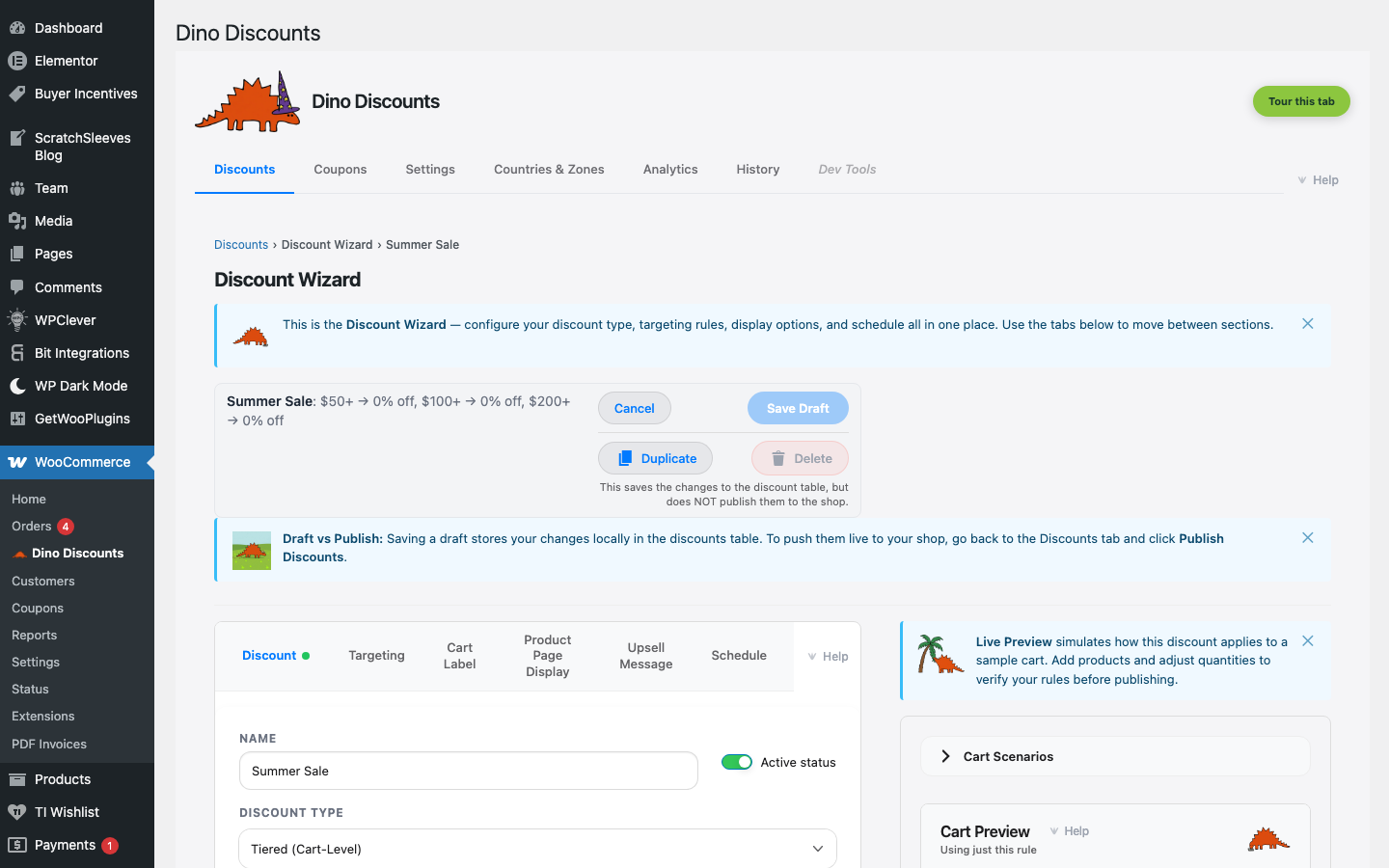
How Cart Preview works
Section titled “How Cart Preview works”Cart Preview runs the real discount engine against a simulated cart. It's not an approximation — the same code that evaluates customer carts in your live store evaluates the preview cart.
To use it:
- Open any discount in the rule editor (or create a new one and save a draft)
- The Cart Preview right rail is already there — it scrolls independently of the editor on the left, so the simulated cart stays in view as you scroll through the section spine
- Add products and quantities using the product search
- The discount applies in real time as you adjust the cart, and the Plain English summary green box above the Rewards section updates to describe what just fired
You can add multiple products, change quantities, and switch between different customer scenarios to test targeting conditions.
What to test
Section titled “What to test”Basic discount application
Section titled “Basic discount application”Start simple — add the products your discount is meant to apply to and confirm the discount fires and the amount is correct.
Tiers and thresholds
Section titled “Tiers and thresholds”For tiered discounts (Spend & Save, Volume), test each tier boundary:
- Just below the threshold — discount should not apply
- Exactly at the threshold — discount should apply
- Above the threshold — correct tier should apply
For example, if you have "spend £50 → 10%, spend £100 → 15%", test carts at £49, £50, £99, and £100.
Targeting conditions
Section titled “Targeting conditions”If your discount has product or category targeting (the Eligible Items sub-block of What triggers it?), test both sides:
- A cart with only qualifying products → discount applies
- A cart with only non-qualifying products → no discount
- A mixed cart → discount applies only to qualifying items (for product-level discounts)
User role targeting
Section titled “User role targeting”Cart Preview simulates a logged-in customer. If your discount targets specific roles in the Who is this for? section, you can check that Cart Preview reflects the expected behaviour — though for role-specific testing, the real WooCommerce cart with a test account is more reliable.
Coupon-activated discounts
Section titled “Coupon-activated discounts”Cart Preview does not currently simulate coupon entry. To test a coupon-activated discount, use a staging or test environment and enter the code in the WooCommerce checkout.
Reading the preview output
Section titled “Reading the preview output”Cart Preview shows:
| Element | What it tells you | |---------|-------------------| | Discount line | The discount amount and the cart label text | | Upsell message | The nudge text (if enabled) and the remaining amount/qty needed | | Line item prices | Updated prices for product-level discounts (Volume, Buy X Get Y) | | Order total | The final total after the discount |
If the discount doesn't appear, Cart Preview also shows why — for example, "Minimum spend not met" or "No qualifying products in cart."
Common issues to catch before publishing
Section titled “Common issues to catch before publishing”| Symptom | Likely cause | |---------|-------------| | Discount doesn't fire | Targeting conditions not met — check the Eligible Items sub-block and the spend threshold in What triggers it? | | Wrong discount amount | Tier boundary off by one — check threshold values in Rewards | | Upsell message doesn't appear | Upsell is disabled on this discount, or cart already meets the threshold | | Discount applies to wrong items | The Eligible Items sub-block includes more than intended — review category/tag selection in What triggers it? | | Cart label shows default text | Custom label not saved — Dino auto-generates a label from the discount type when no custom label is set |
Publishing after a successful test
Section titled “Publishing after a successful test”Once Cart Preview confirms your discount behaves as expected:
- Click the Discounts tab at the top of the admin
- Click Publish in the unsaved changes banner
- Review the "What goes live" summary
- Click Publish Discounts