
Targeting
Targeting controls when a discount fires. By default, a published discount applies to every cart from every customer. Four sections of the rule editor narrow that down: Who is this for? (which customers), When does it apply? (which days / times), Where does it apply? (which locations), and What triggers it? (auto vs coupon vs spend threshold, plus an Eligible Items sub-block that scopes which products count toward the trigger).
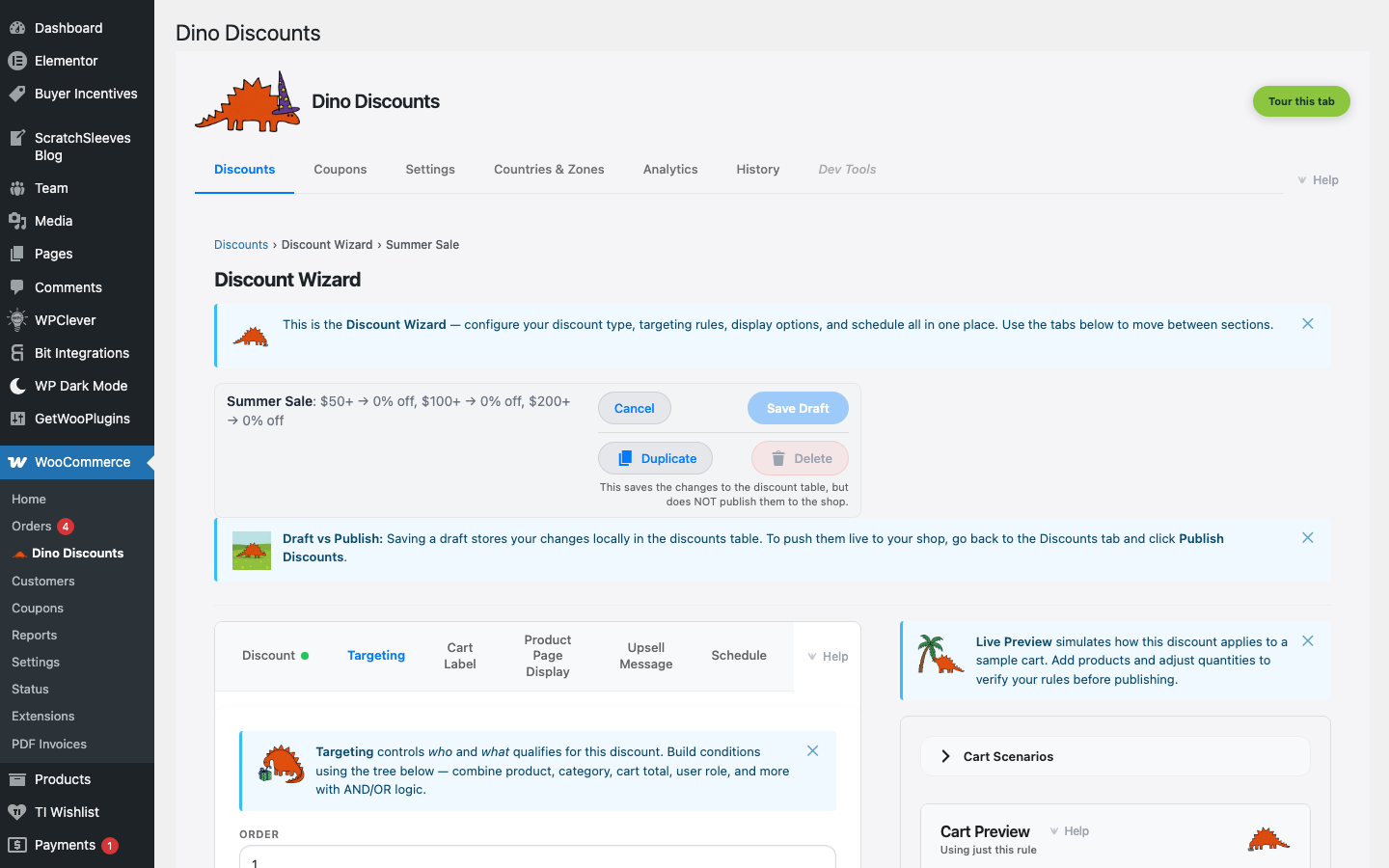
Each section is independent — combine any of them and the discount only fires when every section's conditions are satisfied. The Plain English summary green box above the Rewards section reads the whole configuration back as a sentence, so you can sanity-check the combination at a glance.
Who is this for? — customer targeting
Section titled “Who is this for? — customer targeting”The Who is this for? section restricts the discount to specific customer types.
| Condition | What it checks | |-----------|---------------| | First-time customers | The customer has zero prior completed orders | | Customers with N+ past orders | Reward repeat shoppers (e.g. 3+ orders) | | Lapsed customers — N days since last order | Win-back: only customers who haven't ordered in N days | | User role | Wholesale, VIP, subscriber, or any WordPress role | | Logged-in only | Requires a customer account (excludes guests) | | Total spent ≥ N | Lifetime spend threshold | | Currency | Cart currency in a multi-currency store |
The default empty state is Anyone — every customer qualifies. Tick condition rows to narrow down. Multiple ticks combine with AND.
Where does it apply? — geographic targeting
Section titled “Where does it apply? — geographic targeting”The Where does it apply? section restricts the discount to specific zones. Zones are defined in the Countries & Zones tab (top-level admin tab) and can be reused across any number of discounts.
| Condition | What it does | |-----------|--------------| | Customers in specific zones | Match if the checkout country resolves to one of the zones you pick | | Auto ROW | Catch-all for everyone outside your merchant-defined zones |
The default empty state is Anywhere — every checkout country is in scope.
Common uses:
- Stronger discounts for price-sensitive markets
- Region-exclusive launch offers
- Currency-aware promotions (combine with the Currency row in Who is this for?)
See Countries & Zones for setup.
What triggers it? — coupon-activation vs auto-apply
Section titled “What triggers it? — coupon-activation vs auto-apply”The What triggers it? section controls whether the discount fires silently when conditions match, or requires a coupon code at checkout.
| Trigger | Behaviour | |---------|-----------| | Auto-applied (default) | Fires whenever the cart matches the targeting conditions | | Coupon code | Customer must enter the code at checkout — links the discount to a coupon | | Spend threshold | Cart subtotal reaches a value (e.g. £50+) — works alongside or instead of the coupon |
You can layer a coupon code AND a spend threshold so a code only works above a certain order value. The When does it apply? section interacts with this too — see Scheduling for time-bounded coupon windows.
Why use Dino's coupon-activation instead of a plain WooCommerce coupon?
A plain WooCommerce coupon can only apply a simple discount. Dino's coupon-activated discounts can layer the full rule editor on top: customer targeting, zones, schedules, the rich reward structures (tiers, BOGO, bundles), and any other conditions. The customer experience is the same — they enter a code — but the logic behind it is far more powerful.
For the global WooCommerce coupon-interaction control (whether plain WooCommerce coupons stack with Dino discounts), see Global Settings.
Eligible Items (inside What triggers it?) — product targeting
Section titled “Eligible Items (inside What triggers it?) — product targeting”Product / category / tag / SKU / attribute scoping lives as a sub-block called Eligible Items inside the What triggers it? section. It restricts which cart items count toward the trigger. Not all discount types treat item scope the same way — see below.
Default and override
Section titled “Default and override”By default, the block is set to All items — every line in the cart qualifies. You can override with:
| Mode | Effect | |------|--------| | Specific products / categories / tags / SKUs / attributes / on-sale only | Narrow to a subset | | Exclude (within the same block) | Subtract specific products or categories from the eligible pool |
Targeting by category or tag
Section titled “Targeting by category or tag”Targeting a category automatically includes any products you add to that category later — you don't need to update the discount when your catalogue changes.
Why some discount types behave differently
Section titled “Why some discount types behave differently”The answer comes down to where the discount is applied:
Order-level discounts (% off the cart, Fixed amount off the cart) reduce the cart total as a whole. Item scope on these controls eligibility — whether the discount fires — but the reward itself lands on the order, not individual items. For example, you can make "10% off orders" require that the cart contains at least one item from a specific category, but the 10% applies to the entire order total.
Product-level discounts (Volume, Buy A get B, Cross-product BOGO, Mix & Match bundle, % off a category) operate directly on line items. Item scope is built into their core logic — the discount only applies to the qualifying items, leaving other cart items untouched.
This is why a Volume discount has rich item selection upstream of the Rewards section, while a % off the cart doesn't — it doesn't need it.
Usage limits — how many times it can be redeemed
Section titled “Usage limits — how many times it can be redeemed”Inside What triggers it? you can cap how many times a discount is redeemed:
| Limit | What it caps | |-------|--------------| | Total | The number of redemptions across your whole store. Once it's reached, the discount stops firing for everyone. | | Per customer | The number of redemptions per customer. Once a customer hits it, the discount stops firing for them. |
Counting starts when you enable the limit — orders placed before you set it are not counted retroactively.
How "per customer" identifies a customer
Section titled “How "per customer" identifies a customer”A signed-in shopper is always identified by their account. Guests have no account, so under For guests, match by → Match by email address a guest is identified by the billing email they enter at checkout (lower-cased and trimmed; otherwise treated exactly as typed). A signed-in customer and a guest who use the same billing email are counted as one customer — so someone can't reset a one-per-customer limit just by checking out as a guest with the same email they used while logged in (it works in both directions).
The default, Treat every guest as first-time, does the opposite: every guest checkout is treated as a brand-new customer, so the per-customer limit only ever constrains signed-in accounts.
Guest matching is best-effort — and what to do about it
Section titled “Guest matching is best-effort — and what to do about it”Matching guests by billing email is a deterrent, not a guarantee. A guest can enter a different email address and claim the discount again — there is no reliable way to tell that two guest checkouts are the same person. If you need a limit that cannot be worked around, use the Total cap: it counts every redemption store-wide and always holds.
How sections combine
Section titled “How sections combine”A discount fires only when every section's conditions are satisfied. Conditions inside a single section combine with AND by default — e.g. "Logged-in user AND total spend ≥ £100" — so each tick narrows the audience further.
When a single condition (such as user role) needs to match any of several values, the editor exposes a multi-select where each selected value combines with OR:
User role is Wholesale OR User role is VIP
For more complex combinations — "(Role is Wholesale OR Role is VIP) AND Total spend ≥ £100" — file a request; advanced grouping is on the roadmap.
The Plain English summary green box (just above the Rewards section) renders the combined logic as one sentence — useful for catching mistakes before you publish.
How targeting interacts with stacking
Section titled “How targeting interacts with stacking”When multiple discounts target overlapping product sets, each discount applies to its qualifying items independently. The stacking mode controls what happens when a single item qualifies for more than one discount.