
Discount Priority & Stacking
When a customer's cart qualifies for more than one discount, the stacking mode determines how they combine. This is one of the most common questions merchants have, and Dino Discounts gives you explicit control.
Stacking modes
Section titled “Stacking modes”Configure the stacking mode from the When discounts overlap dropdown in the Discounts tab toolbar (the bar directly above the discounts table) — not the Settings tab:
Apply All — Additive (default)
Section titled “Apply All — Additive (default)”Each discount is calculated on the original price and the savings are added together.
Example: 10% off + 5% off on a £100 item = £10 + £5 = £15 saved (£85 final price).
Best Discount Only
Section titled “Best Discount Only”Only the single largest discount applies. All others are ignored.
Example: 10% off + 5% off = only 10% off applies.
First Match
Section titled “First Match”Discounts are evaluated in priority order (the order you see in the discounts table). The first matching discount wins, and no further discounts are evaluated.
This is useful when you have specific discounts for specific products and a general fallback.
Disable All
Section titled “Disable All”Emergency kill switch. All discounts are disabled instantly. No discounts apply to any cart.
Discount priority
Section titled “Discount priority”In the Discounts tab, discounts appear in a numbered list. This order matters for:
- First Match mode — the first qualifying discount wins
- Display order — when multiple discounts apply, they appear in this order in the cart
Drag discounts to reorder them using the grip handle in the leftmost Reorder column — priority runs top to bottom, so the discount at the top of the table has the highest priority.
WooCommerce coupon stacking
Section titled “WooCommerce coupon stacking”Separately from Dino-to-Dino stacking, you can control how each discount interacts with native WooCommerce coupons (the ones customers type at checkout).
Per-discount setting
Section titled “Per-discount setting”In the wizard's What triggers it? section — below the four-choice picker, alongside the other rule-level meta controls — there's a checkbox labelled "Allow stacking with WooCommerce coupons":
| State | What happens |
|---------|-------------|
| Checked (default) | The discount applies regardless of whether a WooCommerce coupon is in the cart |
| Unchecked | The discount is skipped entirely if any WooCommerce coupon is applied — under the hood this writes a wc_coupon_applied IS_NONE targeting leaf, so it composes with the rest of the rule's conditions |
Uncheck the box when you want your automatic discounts to yield to coupons — for example, if a customer has a specific coupon code, you may not want automatic discounts stacking on top.
Global setting
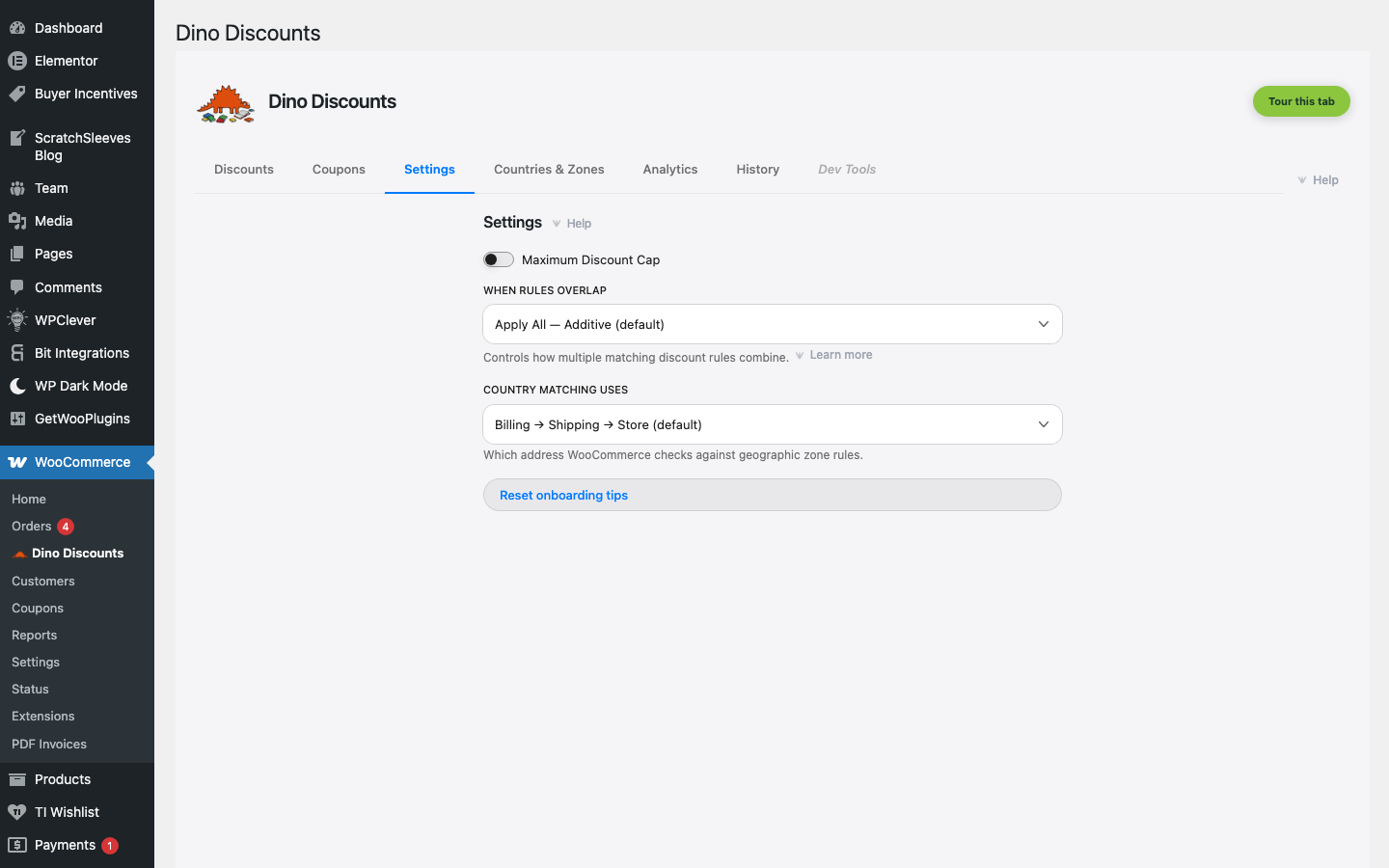
Section titled “Global setting”There is also a global version of this in Settings. When set to "Disable rules", all Dino automatic discounts are suppressed whenever a native WooCommerce coupon is present. This is a blanket override — use the per-discount setting for finer control.
Maximum discount cap
Section titled “Maximum discount cap”As a safety net, you can set a maximum discount cap in Settings. This is a ceiling percentage that no combination of discounts can exceed.
For example, if the cap is set to 40%, a customer qualifying for three discounts that together would give 55% off will only receive 40% off.
This protects your margins against unexpected discount stacking, especially if multiple team members create discounts independently.