
Creating a Discount Coupon
This walkthrough creates a £10 off coupon using the Coupon: £ off recipe in the Discount Wizard. The result is a discount tied to a coupon code that customers enter at checkout.
Step by step
Section titled “Step by step”Open the recipe gallery
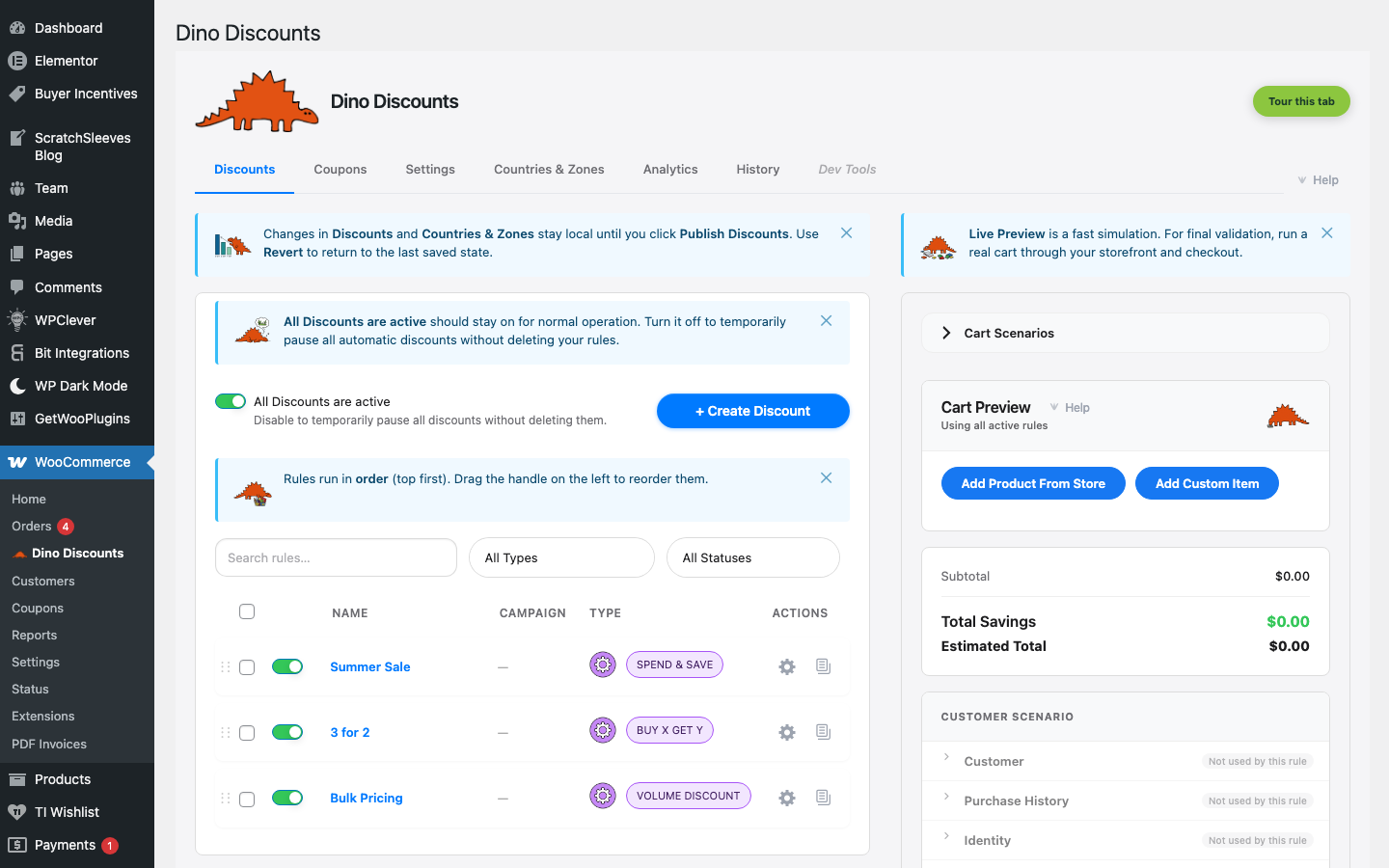
Section titled “Open the recipe gallery”Navigate to WooCommerce → Dino Discounts and click the + Create Discount button in the toolbar on the Discounts tab.
Pick a coupon recipe
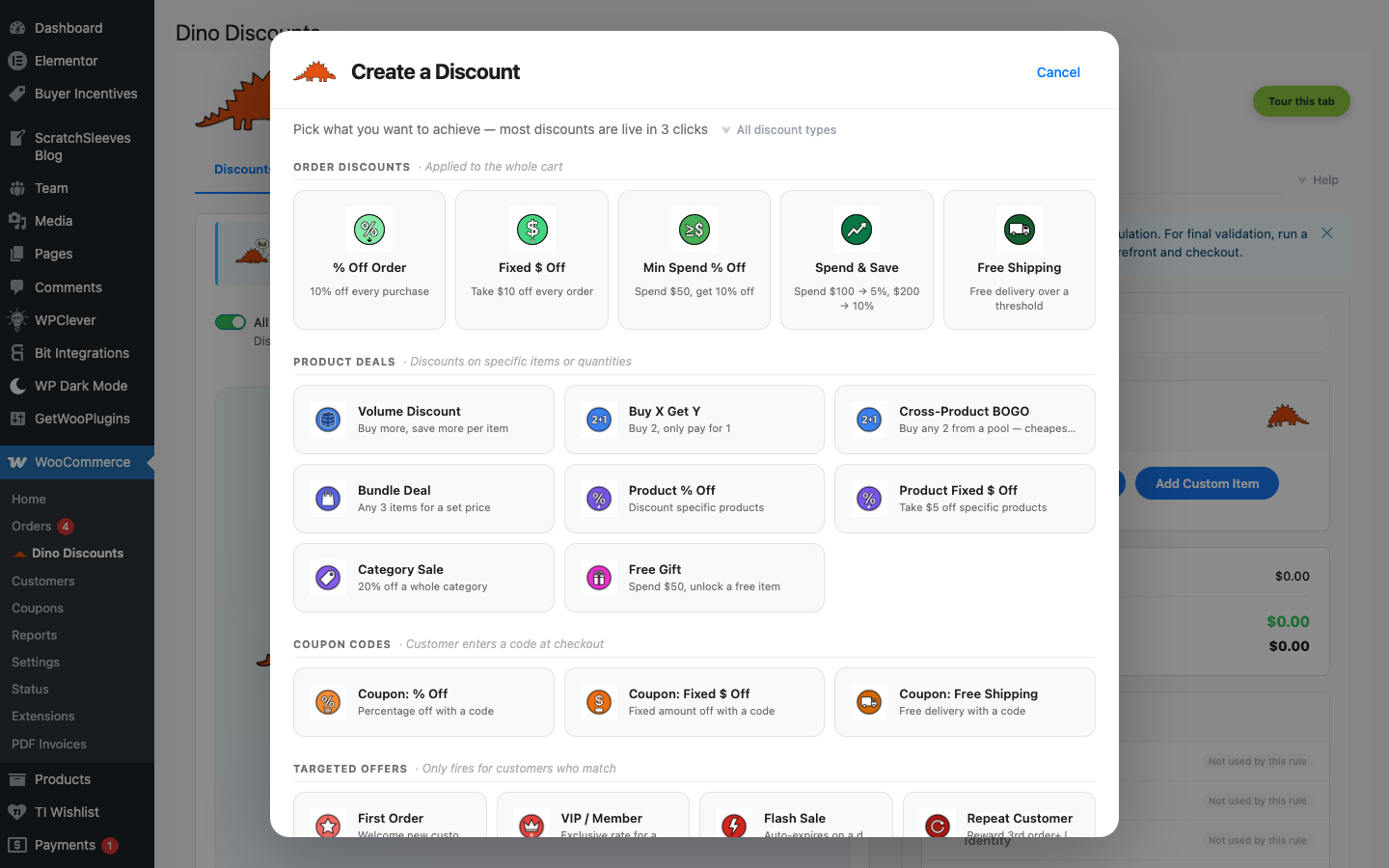
Section titled “Pick a coupon recipe”In the recipe gallery, find the Coupon-triggered sub-heading under Common mechanisms. You'll see three tiles:
| Recipe | What it creates |
|--------|----------------|
| Coupon code discount | A code that applies a percentage off the cart (e.g. SAVE10 → 10% off) |
| Coupon: £ off | A code that applies a fixed amount off the cart (e.g. SAVE10 → £10 off) |
| Coupon: free shipping | A code that waives shipping |
For this walkthrough, select "Coupon: £ off". The wizard opens with the reward type pre-set to Fixed amount off the cart and a placeholder coupon-code field highlighted in the What triggers it? section.
Set the discount amount and the coupon code
Section titled “Set the discount amount and the coupon code”The green Plain English summary box at the top of the wizard reads roughly "When the customer enters code [?], apply £? off the cart." As you fill in the next two fields it updates live.
In the Rewards section, set the fixed amount (e.g. 10). The reward type is already pre-selected as Fixed amount off the cart — leave that as-is for a straightforward £10 off.
In the What triggers it? section, use the coupon dropdown to connect a coupon code:
- Select an existing coupon from the list, or
- Choose "+ Create New Coupon…" to open the New Coupon modal — enter a code like
SAVE10, pick the coupon type (Standard for a basic coupon), and click Create Coupon
Once a coupon is selected, a ✓ confirmation appears — customers will enter that code at checkout to activate the discount.
Save as draft
Section titled “Save as draft”Click Save Draft in the top-right corner. Your coupon discount is saved but not live yet.
Publish your coupon
Section titled “Publish your coupon”When you're happy:
- Click the Discounts tab at the top of the admin to go back to the list
- You'll see an unsaved changes banner at the top
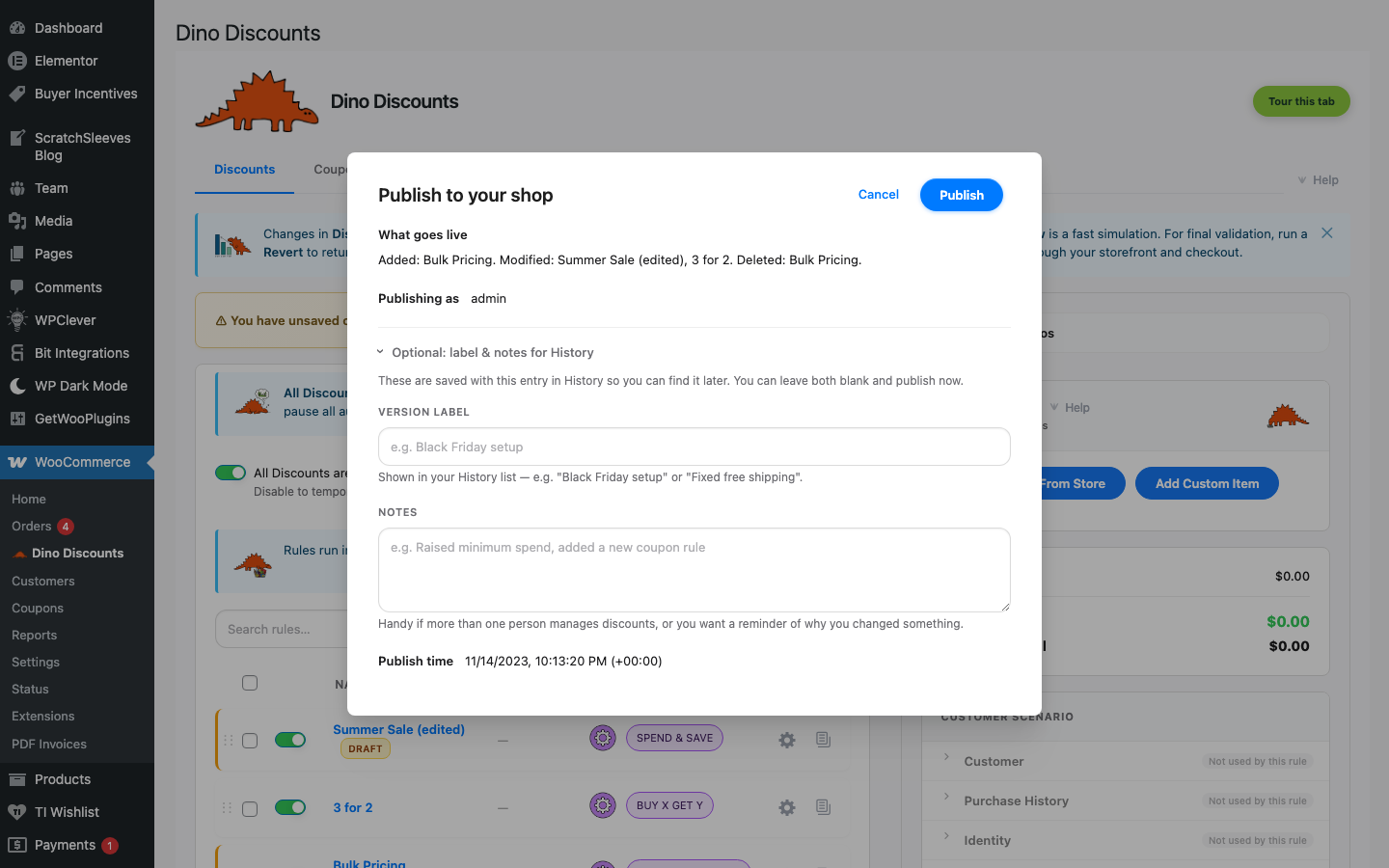
- Click Publish to open the publish modal
- Review the "What goes live" summary listing every pending change
- Click Publish Discounts
Your coupon is now live. Customers entering SAVE10 at checkout will receive £10 off their order.
What's next?
Section titled “What's next?”- Key Concepts — Understand discounts, recipes, drafts, and stacking
- All Discount Types — Explore tiered, bulk, buy-X-for-Y, and mix-and-match
- Targeting — Restrict coupons to specific products or customers
- Discount stacking — Control what happens when multiple discounts apply