
Product Page Pricing
When a discount applies to a product, Dino shows the discounted price (and supporting messaging) on the product page itself — before the shopper adds it to their cart. The display is controlled by the Product page block in the Messaging section of the rule editor.
What shoppers see
Section titled “What shoppers see”Depending on the discount type and configuration, customers see one or more of:
- Crossed-out original price with the discounted price alongside
- Savings badge — "Save 15%" or "Save £5"
- Tier table — for tiered or volume discounts, the full table of quantity / spend tiers and their prices
- Bundle prompt — "Buy 3 for £25" callout on qualifying products
The display updates whenever the rule changes — raise a tier from 10% to 15% and the savings badge follows.
Where to edit the product-page display
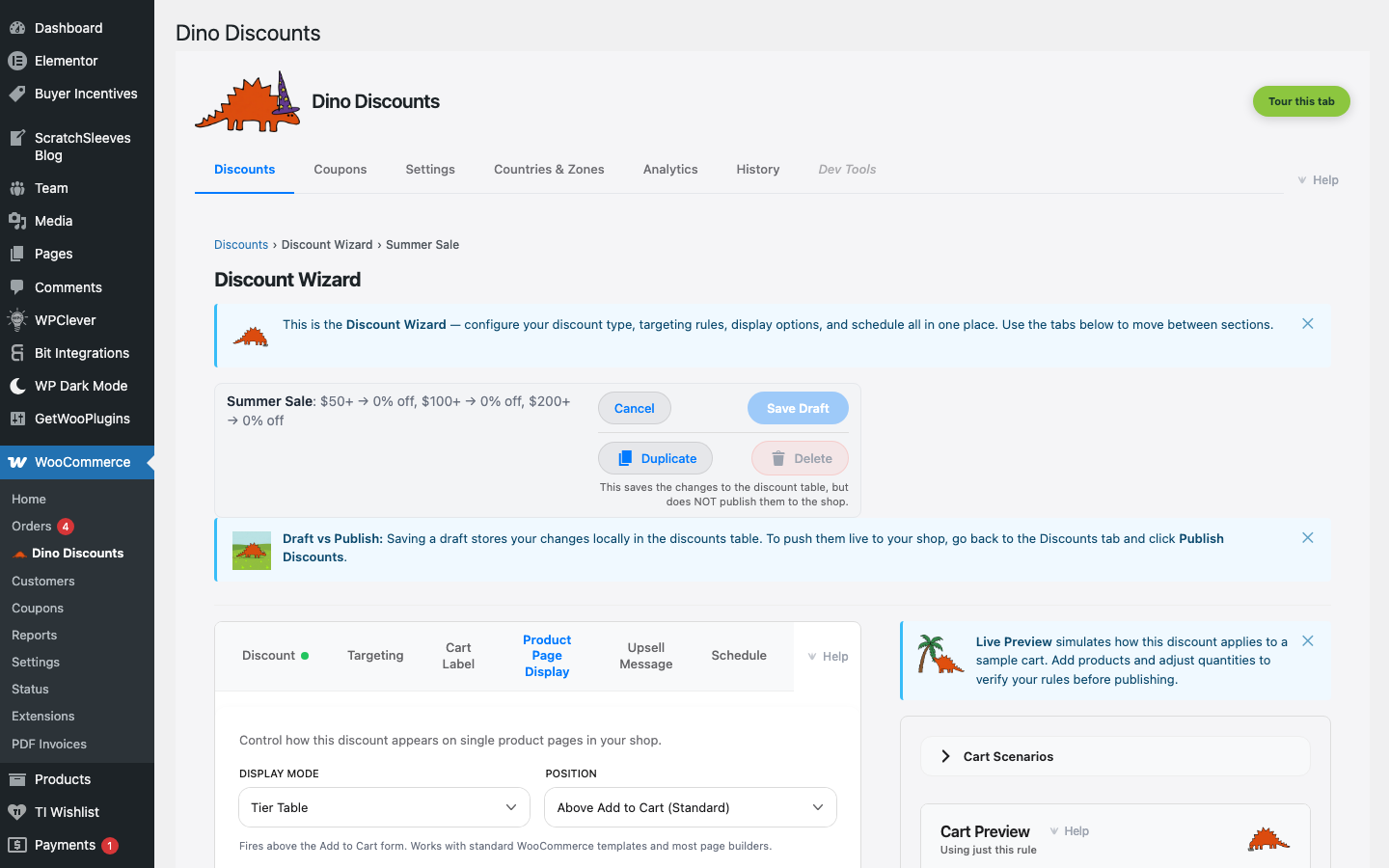
Section titled “Where to edit the product-page display”Whether a rule advertises on the product page — and in what words — is set per rule. Where the display lands is a single store-wide choice, so every product-page promo appears in the same place.
Per rule. Scroll to the Messaging section at the bottom of the rule editor. The Product page sub-block is a checkbox that expands:
- Show on product page — the on/off switch. Unticked, this rule renders nothing on the product page.
- Display mode — a segmented control with two options: Tier Table or Custom Message. It stays visible while the box is unticked, just greyed out — and picking a mode ticks the box for you.
When Display mode is Custom Message, a further input appears for the message copy.
Store-wide. The placement lives on the Message Settings tab, in the Product-page promo card — a single Position dropdown with two options:
- Above Add to Cart — above the Add-to-Cart form. Works with standard WooCommerce templates and most page builders.
- Below price — immediately after the price in the product summary. Needs a standard WooCommerce product template.
There is no product-tab placement: the display always renders in the product summary at one of the two positions above, never as a separate tab alongside Description and Reviews.
The Plain English summary green box above the Rewards section reflects the product-page display in the rule's sentence — so you can see at a glance whether the display matches the rest of the rule.
The locked-state pattern
Section titled “The locked-state pattern”The Product page block is gated — it only lights up when the rule has product-specific targeting (a product / category / SKU / tag / attribute condition in the Eligible Items sub-block of What triggers it?). On a cart-wide rule with no product targeting, the block collapses to a heading: "Add a product, category, SKU, tag, or product-attribute condition to enable Product page messaging." The notice points at the section that owns the gating field.
Inside the unlocked block, Tier Table mode has its own gate: it requires the rule to carry at least one tier with a threshold above zero. On a flat-discount rule, the Tier-Table tile is disabled (with a tooltip explaining why); Custom Message remains available, and unticking Show on product page always does.
This is the Messaging section's locked-state pattern everywhere — gating fields stay in view, with a one-line explanation of what to change to unlock them.
How rule shape maps to the storefront
Section titled “How rule shape maps to the storefront”Different discount types produce different storefront elements, even when the Product page block is set to Tier table:
| Discount type | Storefront element | |---------------|--------------------| | Tiered (% off / Spend & Save) | Crossed-out price + savings badge at each tier; tier table if enabled | | Volume (bulk pricing) | Quantity tier table — every threshold and its per-unit price | | Buy X Get Y (BOGO) | "Add 2 to qualify" prompt on qualifying products | | Mix & Match (Bundle) | "Buy 3 for £25" callout on qualifying products | | Coupon-activated | No product-page display until the coupon is entered at checkout |
How multiple rules combine on one product
Section titled “How multiple rules combine on one product”When two or more rules target the same product and all have Display mode set to Tier Table, the storefront does not render a separate table per rule. It merges them into a single table and, at every spend threshold, shows the best offer the shopper would actually get.
Worked example
Section titled “Worked example”Two rules target the same product (call it "Widget"):
- Rule 1 — "20% off at £50, 30% off at £100" (a tiered discount).
- Rule 2 — "Free shipping at £50" (a flat free-shipping reward).
Without merging, the product page would render two separate tables and the shopper would have to mentally combine them. With merging, the Widget product page shows one table:
| Spend | What you get | |--------|--------------| | £50 | Free shipping | | £100 | 30% off |
The £50 row reads "Free shipping" because — at that threshold — free shipping is the headline benefit a shopper is told about. The £100 row reads "30% off" because at that threshold the tiered discount is the better offer. All three rewards (20% off, 30% off, free shipping) still apply at checkout — the merging is purely a display decision so the merchant's product page is not crowded with overlapping tables.
The tie-break ladder
Section titled “The tie-break ladder”For merchants tuning multi-rule setups, the comparator (StorefrontFilter::reward_beats()) picks the displayed row at each threshold in this order:
- Free shipping and free gift outrank value-bearing rewards (% off, fixed off, fixed price). They are flagged on the table because they are the merchant's most visible upgrade.
- Within the same kind, the larger value wins —
30% offbeats20% off,£10 offbeats£5 off. - Cross-kind ties at the same threshold (e.g.
15% offvs£10 offneither uniquely better) — the first rule listed in the admin discounts table wins.
The merchant cares about #1 and #2; #3 is documented here for completeness but should rarely matter in practice — design the rule set so each threshold has one obvious "best" reward.
What this is NOT
Section titled “What this is NOT”- Not stacking. Stacking is a checkout-time decision controlled by the Stacking mode — the When discounts overlap dropdown in the Discounts tab toolbar. The merged table is a display choice; the engine still evaluates every rule independently when the cart is calculated.
- Not deduplication. None of the contributing rules are dropped. Delete a "duplicate" rule and the next-best offer at each threshold slides into its slot — sometimes leaving an empty row.
- Not best-in-the-cart. The merging is per-product on the product page. The cart still shows the per-rule discount lines under whatever Stacking mode you've configured.
You cannot split the merged table by moving one rule elsewhere on the page — Position is store-wide, so every product-page promo shares one slot. To keep a rule out of the merged table, untick Show on product page for that rule.
Do not reach for Custom Message to demote a rule instead. Merging requires every advertised rule at the position to be in Tier Table mode; a single rule set to Custom Message makes the whole group non-mergeable, and the product page falls back to rendering just one rule. Demoting rule C that way costs you rules A and B's merged table too.
Currency-matching gate
Section titled “Currency-matching gate”The storefront display also respects the shopper's checkout currency. In a multi-currency store, the crossed-out price and savings badge use the cart-currency's price entry from the rule's per-(zone, currency) price list — never an FX conversion. If a rule has no price configured for the active currency, the product-page display falls back to hidden rather than rendering a mismatched amount. See Multi-currency for the per-currency price model.
Zone scoping
Section titled “Zone scoping”The display also honours the rule's Where does it apply? zones. A rule scoped to "EU zone" only shows the discounted price on the product page when the shopper resolves to an EU country — shoppers outside the zone see the normal catalog price. This is enforced by the zones tree-leaf check, so user-role + zone combinations don't drift between the product page and the cart.
How it interacts with themes
Section titled “How it interacts with themes”Dino hooks into WooCommerce's standard product-page hooks, so it works with most themes out of the box. The display respects your theme's price formatting (currency symbol, decimal places, position).
If your theme uses non-standard price markup, the display may need CSS adjustments. The plugin uses clearly named CSS classes (.dd-*) for all output, making it straightforward to style.
Programmatic editing
Section titled “Programmatic editing”The display settings are writable via the REST API for bulk imports, as the rule's messaging.storefront object. It is either null (nothing renders on the product page) or { display_kind, position, message } — display_kind is badge or banner, and position is above_add_to_cart or below_price. Note that position is stored per rule but not read for placement: the storefront uses the store-wide setting described above. The older flat storefront_display / storefront_position / storefront_message fields are retired. See the REST API reference.
What's next
Section titled “What's next”- Cart Labels — the cart-line label lives in the same Messaging section
- Upsell Messages — the spend-more nudge lives in the same Messaging section
- Testing with Cart Preview — verify the display before publishing