
See It Live on Your Store
Watch it in a shopper’s cart
Section titled “Watch it in a shopper’s cart”Once your first automatic discount is published, your shoppers see it in the cart. The walkthrough below uses the discount from that guide (spend £50 to get 10% off, or £100 to get 15% off) with its spend-more nudge also ticked. It was captured from a real WooCommerce cart.
-
1Under £50
- A shopper has £46 in their cart. Below it, the spend-more nudge says they are £4.00 away from 10% off.
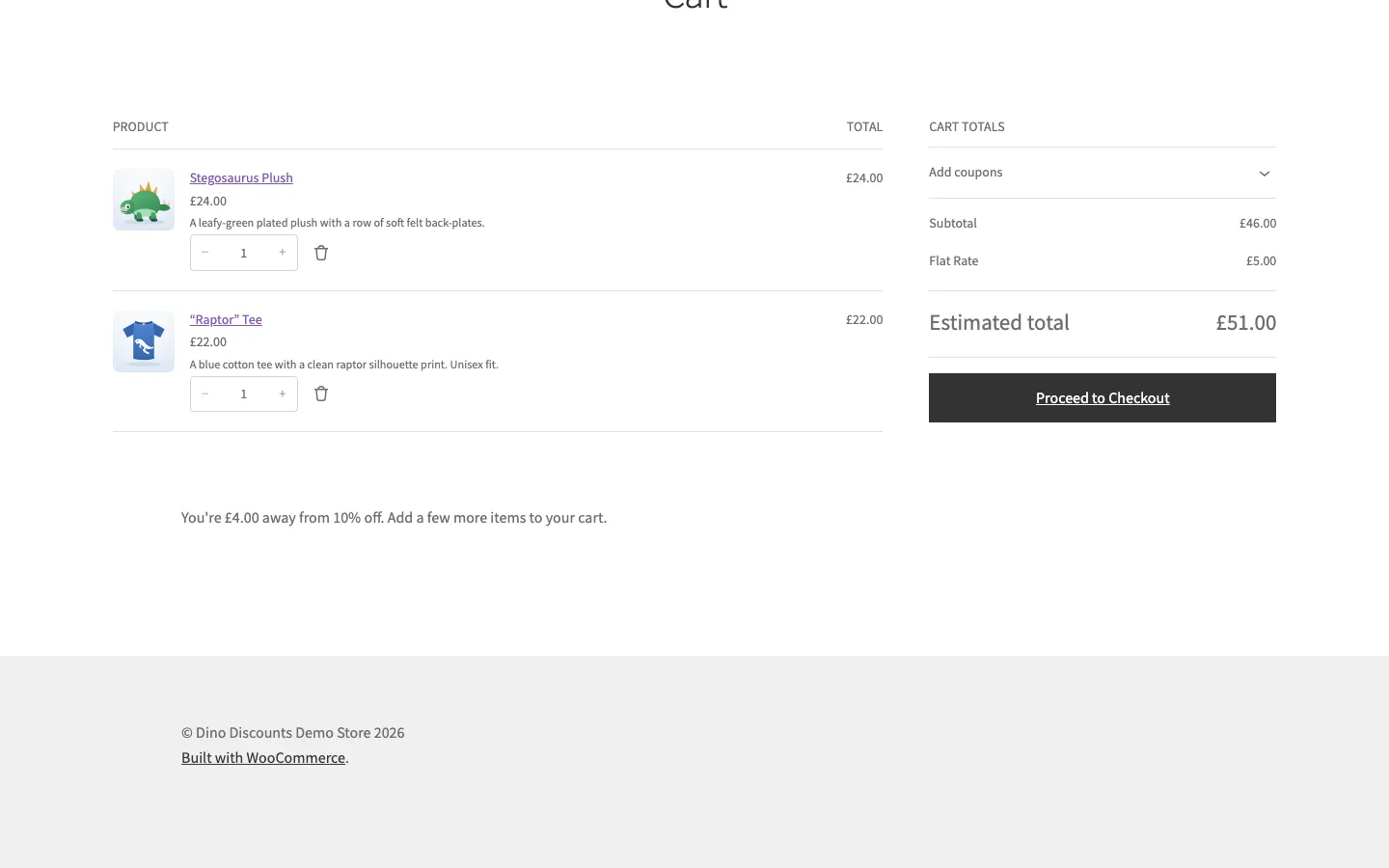
- A shopper has £46 in their cart. Below it, the spend-more nudge says they are £4.00 away from 10% off.
-
2Add one more item
- They add one more item, a £6 pin.
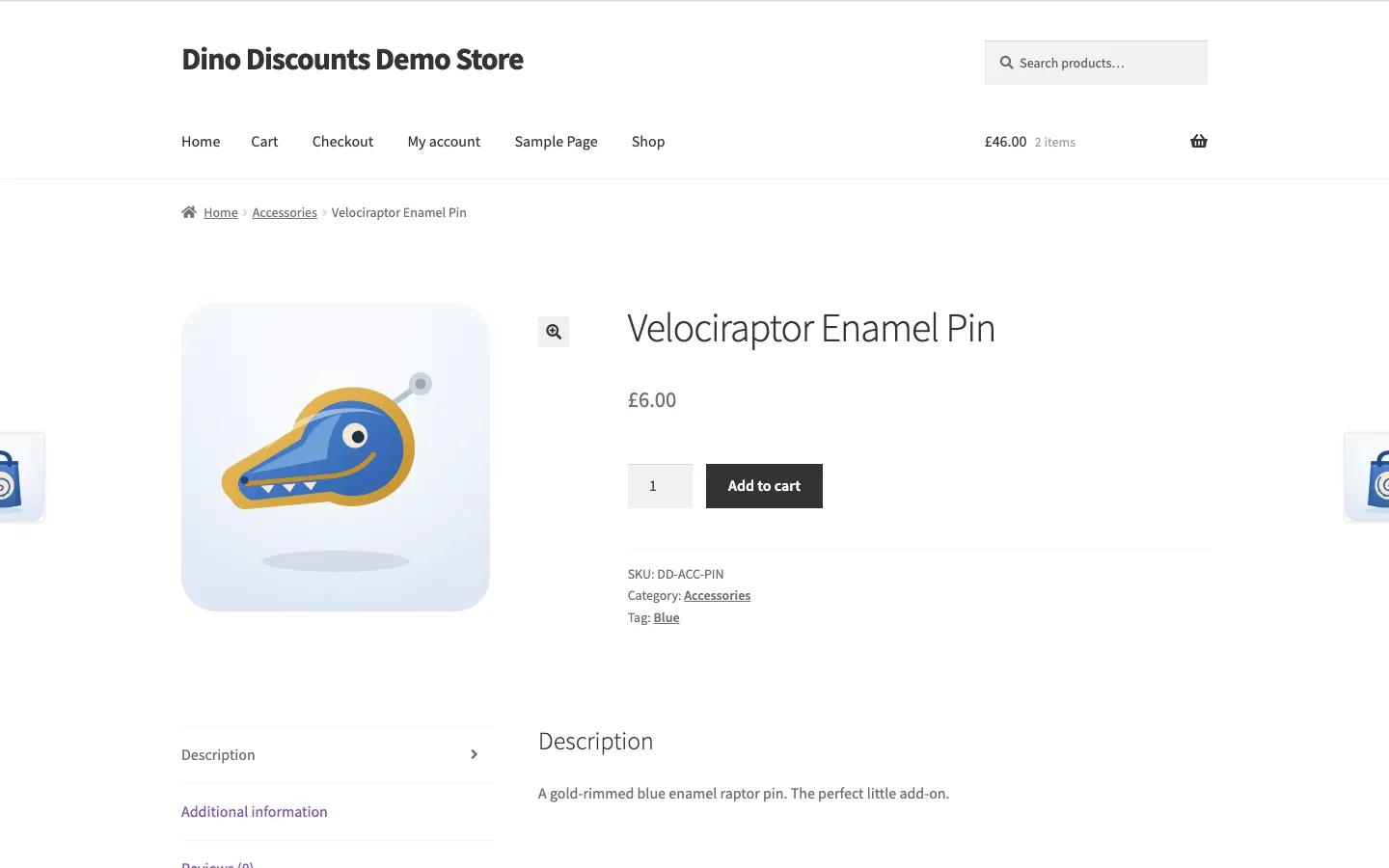
- They add one more item, a £6 pin.
-
3The discount applies
- The cart is now £52. A Spend & Save applied notice shows, and the discount takes £5.20 off on its own, with no coupon code.
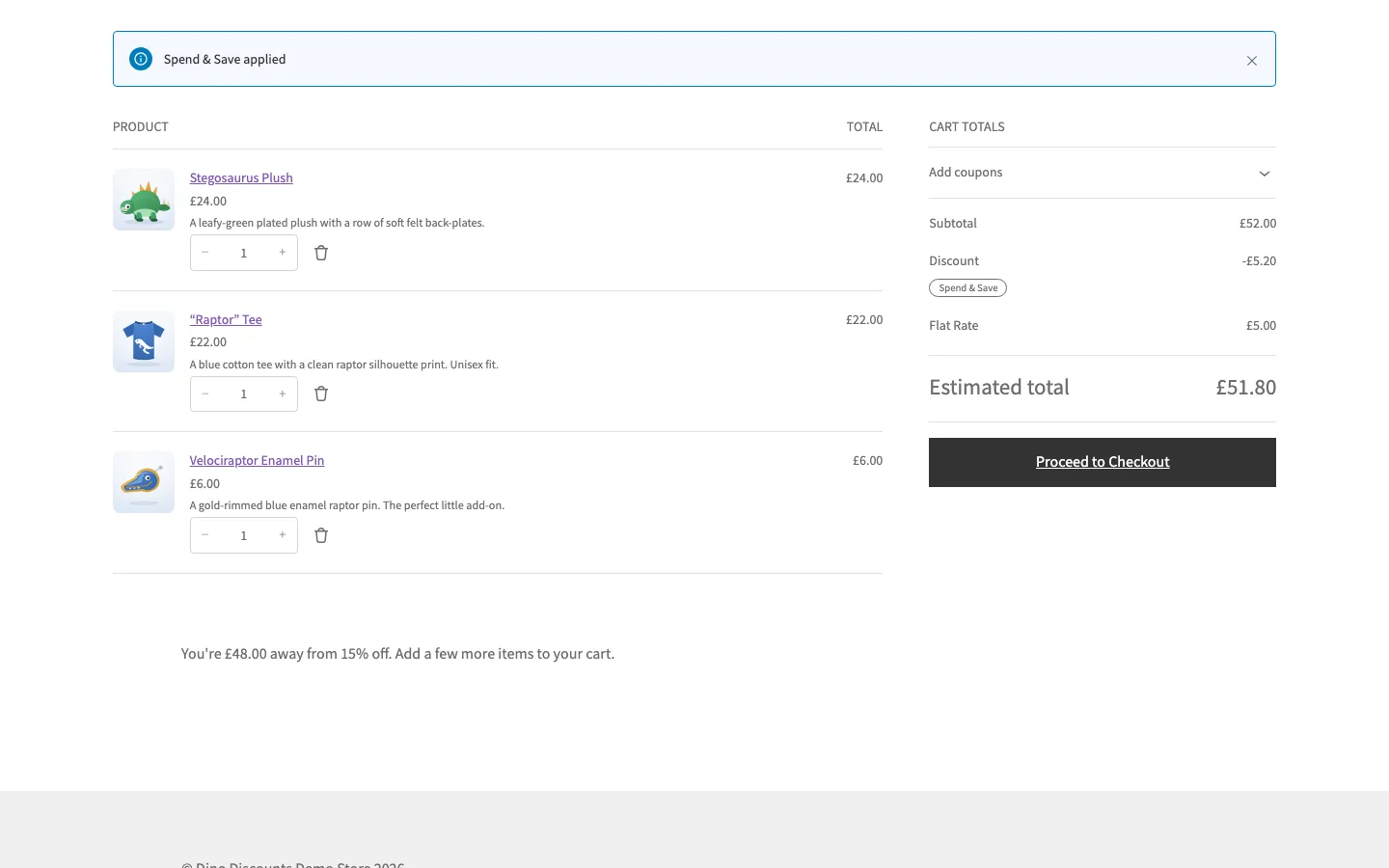
- The nudge moves on to the next tier: £48.00 more for 15% off.
- The cart is now £52. A Spend & Save applied notice shows, and the discount takes £5.20 off on its own, with no coupon code.
What the shopper sees
Section titled “What the shopper sees”- Under £50, a nudge. The spend-more nudge tells the shopper how much more to spend to reach the discount.
- They add one more item. Nothing else to do. There is no coupon code to type.
- The discount appears. Once the cart reaches £50, a Discount line shows in the cart totals, tagged with the discount’s cart label. The nudge then points at the next tier, if there is one.
The first-discount guide leaves the nudge off. To show it, tick Include in spend-more nudges in the discount’s Messaging section and publish again. With the message left blank, as here, the nudge uses the built-in copy.
Change what the shopper reads
Section titled “Change what the shopper reads”- The nudge wording, and where it shows: Upsell messages
- The name on the discount line: Cart labels